Amazon has sold more than 250 million Fire TV devices worldwide, and the platform is on track to pass 118 million active streamers by the end of 2025 (AFTVnews, 2025; eMarketer, 2025). That is a lot of remotes pointed at a lot of TVs, and most of the people holding them are not entirely sure how to get their IPTV player app running correctly.
You bought a streaming stick or box. You have a playlist or subscription you are licensed to use. Now you need the app installed, the playlist loaded, and the picture running without endless buffering wheels. This guide walks through that exact process for the three device families most StanelyIPTV readers ask about: Amazon Fire TV Stick and Fire TV Cube, Xiaomi Mi TV Stick, and generic Android TV boxes or smart TVs.
Setup takes about 15 minutes per device once you know where to click. This guide covers only how to install a player app and load a playlist you already have legal rights to use — it does not provide or endorse unauthorized streaming sources.
Key Takeaways
- Fire TV, Mi TV Stick, and most Android TV boxes all use the same core workflow: sideload a player app, then enter your playlist credentials.
- Germany’s average download speed hit 123 Mbps in 2026, well above the 25 Mbps needed for smooth 4K streaming (Statista, 2026).
- 90% of IPTV buffering complaints trace back to the local network or device, not the streaming provider itself (TROYPOINT, 2025).
- Switching from Wi-Fi to Ethernet resolves the majority of buffering issues on stationary devices like the Fire TV Cube.
What You Need Before You Start
The first time I set up an IPTV app on a Fire Stick, I skipped the “Apps from Unknown Sources” step and spent twenty minutes wondering why the installer kept failing silently. Getting the prerequisites right the first time saves that headache entirely.
What you’ll need:
- A streaming device: Fire TV Stick, Fire TV Cube, Mi TV Stick, or any Android TV box/smart TV
- A stable internet connection — minimum 10 Mbps for HD, 25 Mbps for 4K (TROYPOINT, 2025)
- Your IPTV playlist details: an M3U URL or Xtream Codes login (server address, username, password) from a service you are licensed to use
- A player app: IPTV Smarters Pro or TiviMate are the two most widely supported options
- Time: ~15 minutes per device
- Difficulty: Beginner
If you’re new to playlist formats, our upcoming guide on Xtream Codes vs. M3U covers the difference in detail.
Step 1: Set Up IPTV on Amazon Fire TV Stick and Fire TV Cube
In 2026, Fire TV remains one of the two most-used streaming platforms in Europe and North America, which is why most IPTV player apps optimize their interface for Amazon’s remote-first navigation (AFTVnews, 2025). By the end of this step, your Fire TV Stick or Fire TV Cube will have a player app installed and ready for your playlist.
Fire TV devices block sideloaded apps by default, so you enable that access first:
- Go to Settings → My Fire TV → Developer Options
- Turn on Apps from Unknown Sources
- Open the Downloader app (install it free from the Amazon Appstore if it’s not already there)
- In Downloader, type the direct APK URL for your chosen player app, or its known install code, and select Go
- Wait for the download bar to complete, then tap Install
- Once installed, open the app from your Fire TV home screen
Verify it worked: you should see the player app’s login or setup screen, not an installation error. If Downloader reports “unable to resolve host,” check your Wi-Fi connection before retrying.
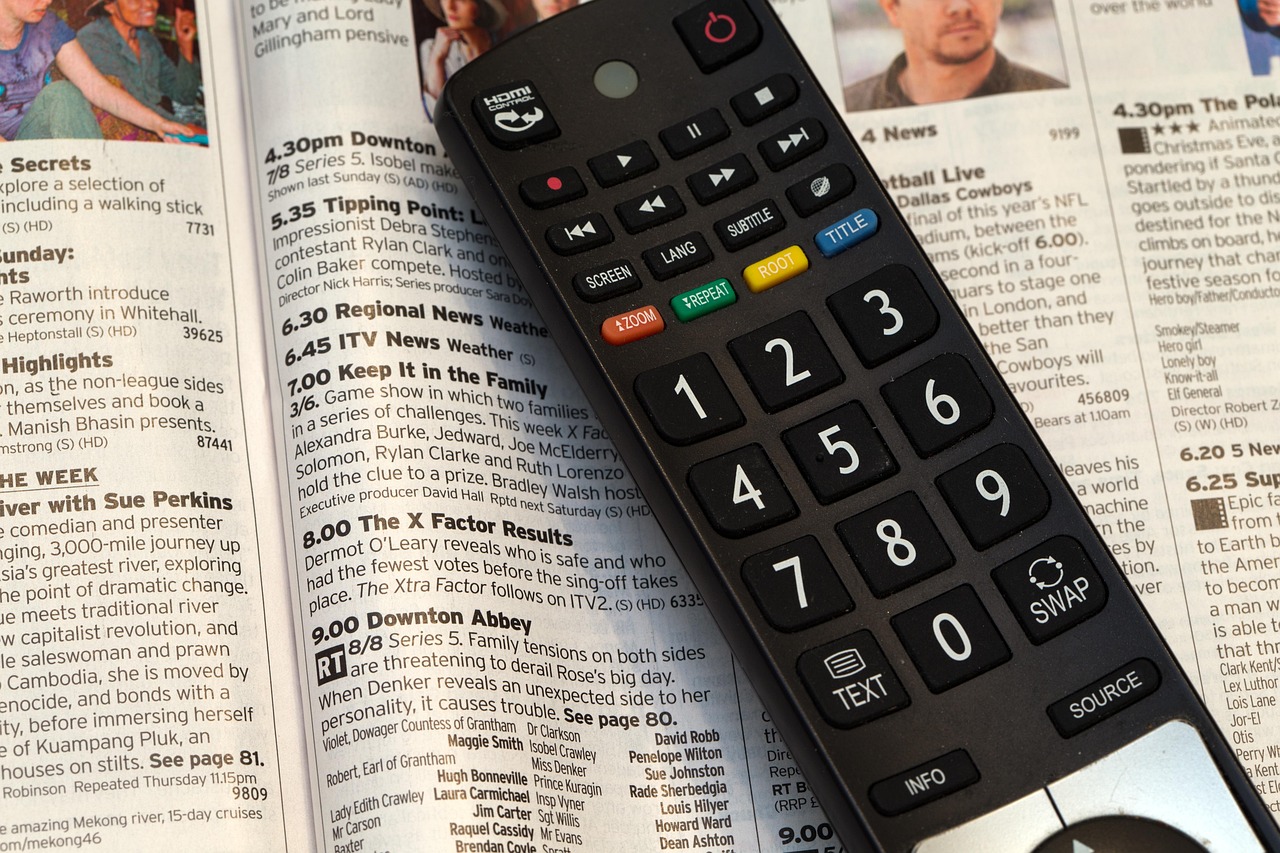
The Fire TV Cube adds one wrinkle worth knowing: because it runs a more powerful chipset, it handles 4K IPTV streams noticeably better than the base Fire TV Stick, so if you regularly watch 4K content, the Cube is the better long-term choice.
For a full breakdown of hardware differences, our upcoming Fire TV Stick vs. Fire TV Cube comparison covers performance in detail.
Step 2: Set Up IPTV on Xiaomi Mi TV Stick and Mi Box
Xiaomi holds roughly 27% of the global Android TV box market, making the Mi TV Stick one of the most common Android TV devices outside North America, including across Germany and the wider DACH region (Global Growth Insights, 2025). By the end of this step, your Mi TV Stick will have a player app ready to accept your playlist.
Because the Mi TV Stick runs Android TV, the process differs slightly from Fire TV’s Downloader workflow:
- On the home screen, open the Google Play Store
- Search directly for IPTV Smarters Pro or TiviMate — both are available on Play Store for Android TV, so no sideloading is usually required
- Select Install and wait for it to finish
- Open the app from Apps → Your Apps on the Mi TV Stick home screen
- If your preferred app isn’t on Play Store in your region, enable Unknown Sources under Settings → Device Preferences → Security & Restrictions and sideload the APK using a file manager app instead
Verify it worked: the app icon should appear in your Mi TV Stick’s app row, and opening it should show a login or “add playlist” screen.
Most setup guides treat every Android TV device identically, but the Mi TV Stick’s smaller internal storage means installing two or three heavy player apps side by side can slow the whole interface down. Stick to one primary player app and one backup, not four.
Step 3: Set Up IPTV on Other Android TV Boxes and Smart TVs
Streaming-capable TVs already sit in more than 80% of German households as of 2026, and most of those sets — along with generic Android TV boxes — follow the same setup logic as the Mi TV Stick (Statista, 2026). By the end of this step, you’ll have a working player app on whichever device you own, even if it isn’t Fire TV or Xiaomi branded.
- Check whether your device runs Android TV, Google TV, Tizen (Samsung), or webOS (LG) — this determines your app store
- On Android TV/Google TV devices: open Google Play Store, search for your player app, and install directly
- On Samsung or LG smart TVs: check the built-in app store first; if the app isn’t listed, most smart TVs support installing an IPTV player through their native “Universal Guide” or third-party app-loading feature
- If your smart TV has no compatible player app at all, connect an external Fire TV Stick, Mi TV Stick, or Chromecast with Google TV to the HDMI port instead — this is the most reliable fallback
- Launch the installed app and confirm the login/setup screen appears
Verify it worked: the player app opens without crashing and displays a field for entering your playlist or Xtream Codes login.
Looking for hardware recommendations? Our upcoming guide to the best Android TV boxes for IPTV in 2026 covers top picks.
Step 4: Load Your Playlist and Electronic Program Guide (EPG)
Once the player app is installed on any device, the remaining step is identical everywhere: entering your playlist. Roughly 64% of households globally now use some form of internet-delivered television, and nearly all of them rely on this same M3U or Xtream Codes login pattern to connect their subscription to a player app (Global Growth Insights, 2026).
- Open your player app (IPTV Smarters Pro, TiviMate, or similar) and select Add User or Add Playlist
- Choose the login type: Xtream Codes API (server URL, username, password) or M3U URL (a single playlist link)
- Enter the exact credentials provided by your licensed IPTV service — copy-paste from an email or account dashboard to avoid typos
- If your app supports a separate EPG URL, paste it in the EPG field so channel guide data and show times display correctly
- Save the profile and let the app load the channel list — this can take 30-90 seconds on a large playlist
- Test 2-3 channels across different categories (news, sports, entertainment) to confirm playback works
Verify it worked: channels load with correct names and logos, and video plays within a few seconds of selecting a channel.
Not sure which format your provider uses? Our upcoming Xtream Codes vs. M3U guide explains both formats in detail.
Step 5: Optimize Your Network to Stop Buffering
Buffering is the single most common IPTV complaint, and 90% of those cases come down to the local network or device rather than the streaming service itself (TROYPOINT, 2025). By the end of this step, your stream should run without the spinning wheel interrupting playback.
- Check your speed against the requirement. HD needs roughly 10 Mbps and 4K needs 25 Mbps per device; Germany’s average broadband connection now delivers around 123 Mbps, with a median around 61 Mbps down and 23 Mbps up, so most households have plenty of headroom (Statista, 2026)
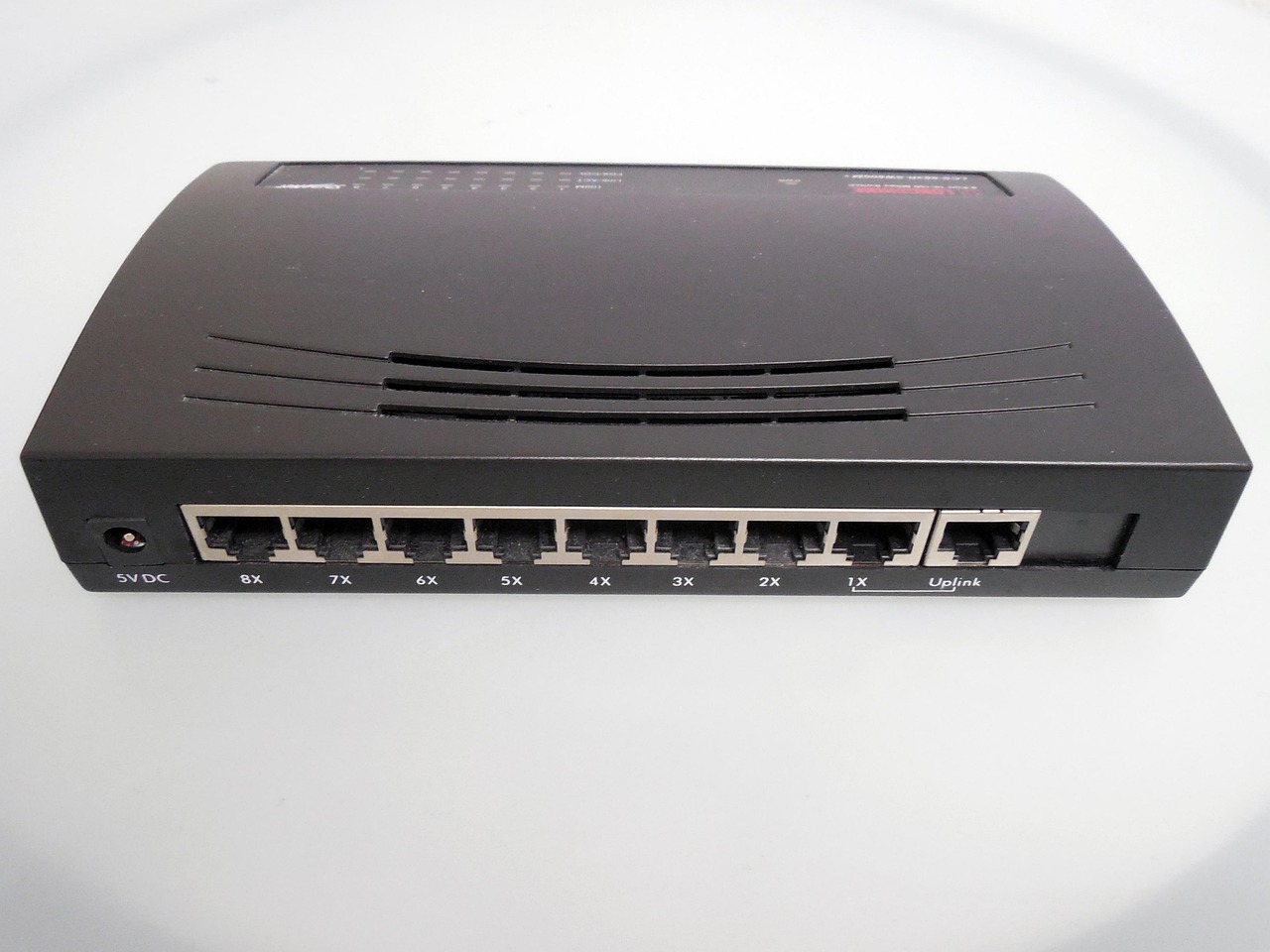
- Prefer Ethernet over Wi-Fi for stationary devices like the Fire TV Cube or an Android TV box — a wired connection removes the interference that causes most dropped frames
- Clear the app cache periodically: Settings → Apps → your IPTV app → Storage → Clear Cache
- Switch DNS servers to 1.1.1.1 (Cloudflare) or 8.8.8.8 (Google) if your ISP’s default DNS is slow to resolve
- Test with a VPN if buffering persists only on certain channels — if the VPN fixes it, your ISP may be throttling specific traffic types
Common Mistakes to Avoid
Most setup failures happen for the same handful of reasons, and skipping them will save you a repeat trip through these steps.
1. Forgetting to enable unknown sources on Fire TV. People assume the Downloader app will install anything automatically, but Fire OS blocks sideloaded APKs by default. Always check Developer Options first.
2. Mixing up Xtream Codes and M3U fields. Entering a full Xtream Codes URL into an M3U field (or vice versa) causes a blank channel list. Confirm which format your provider gave you before entering anything.
3. Ignoring EPG setup entirely. Skipping the EPG URL still lets you watch channels, but you lose show times and program descriptions — worth the extra 30 seconds to add it.
4. Blaming the provider for a local Wi-Fi problem. Since 90% of buffering issues trace back to the network or device, restarting the router and switching to Ethernet solves more problems than contacting support ever does (TROYPOINT, 2025).
5. Installing too many player apps on storage-limited sticks. Both the Fire TV Stick (base model) and Mi TV Stick have limited internal storage; three or four heavy apps running simultaneously will slow the whole interface, not just the IPTV app.
What Success Looks Like
If everything went correctly, you should now have a working player app on your device, a channel list that loads within seconds, and playback that starts without a long buffering delay. Your EPG should show accurate program names and times if you added that URL in Step 4.

Once the basics are running smoothly, the next-level move is setting up multiple device profiles under one account (if your plan allows it) so household members can watch different channels on different devices at once.
Curious how many devices your subscription supports? We’ll cover connection limits in an upcoming post.
Frequently Asked Questions
Which player app should I use, IPTV Smarters Pro or TiviMate?
Both work well; IPTV Smarters Pro has a friendlier interface for beginners, while TiviMate offers deeper customization and better EPG handling. About 90% of buffering complaints relate to network setup rather than app choice, so either app performs similarly once your connection is optimized (TROYPOINT, 2025).
Can I use the same playlist on multiple devices at once?
That depends entirely on your subscription’s connection limit, not the app. Most licensed IPTV services cap simultaneous streams per account (often 1-3 connections), so check your provider’s terms before running the same login on several devices simultaneously.
Why does my Mi TV Stick run IPTV apps slower than my Fire TV Cube?
The Fire TV Cube uses a more powerful processor built for 4K decoding, while the Mi TV Stick prioritizes affordability and compact size. If you regularly stream 4K, the Cube will handle it more comfortably.
Do I need a VPN to set up IPTV?
No — a VPN is not required for setup itself. It’s only useful as a troubleshooting tool if you suspect your ISP is throttling streaming traffic, which affects a portion of the 46% of VPN users who cite streaming as their main use case (DemandSage, 2026).
How long does the whole setup process take?
Budget about 15 minutes per device once you have your playlist credentials ready. Most of that time goes toward app installation and the initial channel list load, which can take up to 90 seconds on larger playlists.
Final Thoughts
You now have a repeatable process for installing an IPTV player app and loading a licensed playlist on Fire TV Stick, Fire TV Cube, Mi TV Stick, or any other Android TV box or smart TV. The steps stay the same regardless of hardware: enable installs, load the app, enter your credentials, and tune your network if buffering shows up.
If you run into a device-specific issue not covered here, StanelyIPTV’s support team can walk through your exact setup.
Need help with a specific device? Our full StanelyIPTV supported devices and apps list is coming soon.
Sources
- AFTVnews, “Over 250 million Fire TVs have been sold,” retrieved 2026-07-02, aftvnews.com
- eMarketer, “US Amazon Fire TV Users and Penetration Forecasts,” retrieved 2026-07-02, emarketer.com
- Global Growth Insights, “Android TV Box Market Size, Share,” retrieved 2026-07-02, globalgrowthinsights.com
- Global Growth Insights, “IPTV Market Size, Growth,” retrieved 2026-07-02, globalgrowthinsights.com
- Statista, “Average monthly internet speed Germany 2025,” retrieved 2026-07-02, statista.com
- Statista, “Smart TVs in Germany – statistics & facts,” retrieved 2026-07-02, statista.com
- TROYPOINT, “How to Eliminate IPTV Buffering,” retrieved 2026-07-02, troypoint.com
- DemandSage, “25+ VPN Statistics of 2026,” retrieved 2026-07-02, demandsage.com